Your Extender Is Repeating When It Could Be Reaching: How the Cable Already in Your Walls Unlocks Wired-Speed WiFi
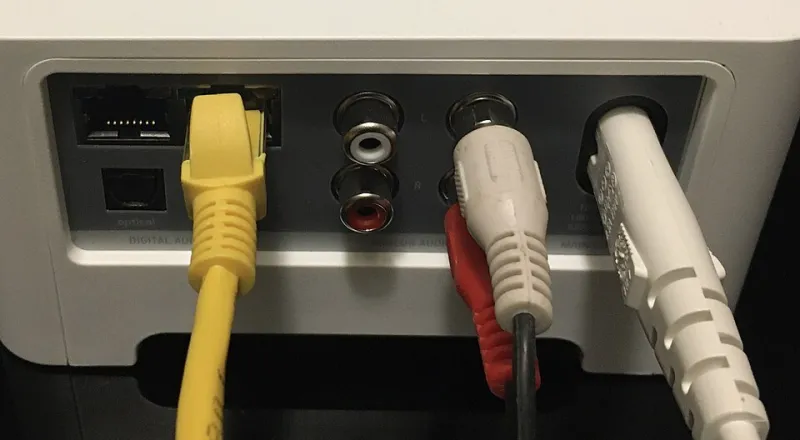
Photo: Pittigrilli, CC BY-SA 4.0, via Wikimedia Commons
There is a scene that plays out in thousands of American homes every week. The home office sits at the far end of the house, video calls stutter, and the fix seems obvious: buy an extender. It arrives, gets plugged into a hallway outlet, and the calls still stutter. Maybe a little less. Maybe not at all.
The device usually is not the problem. The way it is connected is.
A Repeater Is a Compromise by Design
A standard extender in repeater mode does something deceptively simple. It listens to your router on one channel, then re-broadcasts that same traffic on another. Every packet crosses the air twice. On paper that costs you roughly half your throughput. In practice, with a weak upstream signal and a crowded channel, it can cost far more — plus it adds latency to everything, which is exactly what makes video calls and gaming feel bad even when the speed test looks okay.
That upstream link is called the backhaul, and it is the single biggest factor in whether an extender feels like an upgrade or a placebo. When the backhaul is wireless, you are asking one radio to hold a conversation with the router and with your laptop at the same time. Give it a wire and the device stops repeating and starts behaving like a genuine access point: full speed to your clients, no halving, no duplicate airtime.
The good news is that most houses already have a path.
Option One: Ethernet, If It Exists
If there is an RJ45 jack anywhere near the dead zone, stop reading and use it. A length of Cat5e or Cat6 between router and extender turns a $60 booster into something that performs like a $150 mesh node.
Do not assume you have none. Plenty of homes built between the late 1990s and today were wired with Cat5e for telephone jacks. If you pull a wall plate and find eight conductors in the cable rather than four, a technician can re-terminate both ends with RJ45 keystones and you have a network run you did not know you owned. Look in the basement, the garage, or the closet where the phone lines converge — that is usually where everything lands.
If the run is long, think about length: Ethernet is officially good to 328 feet, which covers almost any single-family house. If the jack is in a bad spot, a flat Cat6 cable tucked under a baseboard is ugly but effective, and it beats a wireless backhaul every time.
Option Two: Coax and MoCA
Coax is the sleeper option in the US, because cable TV wiring runs to more rooms than Ethernet ever did — and it is often already terminated at a splitter near the router.
MoCA adapters push Ethernet over that coax. A pair costs roughly $60 to $120 depending on the model and speed tier, and MoCA 2.5 handles well over a gigabit in real use. The setup is two adapters: one near the router connected to a coax jack, one behind the extender in the far room. You will want a MoCA-rated splitter, and if you have cable internet you will want a point-of-entry filter so your network traffic does not leak out to the neighborhood.
The catch is that coax jacks tend to be in the rooms where a previous owner wanted a television, not necessarily where you want WiFi. But a bedroom wall jack beats a hallway outlet with three walls in the way.
Option Three: Powerline, With Realistic Expectations
Powerline adapters are the option people reach for last, and for good reason: results swing wildly from house to house. The technology sends data over your electrical wiring, which means it shares a medium with every motor, dimmer switch, and cheap USB charger in the building.
What actually determines whether it works in your home:
- Circuit layout. Adapters talk best when both outlets are on the same circuit or the same leg of your panel. A finished basement on the opposite leg from the second floor is a coin flip.
- Age of the wiring. Newer construction with AFCI breakers can attenuate the signal more than old-school circuits.
- What is plugged in nearby. Skip the surge strip, skip the GFCI outlet in the bathroom, and never plug an adapter into an outlet shared with a space heater or a vacuum.
- Expectation setting. A good AV2 or G.hn kit might deliver 200 to 400 Mbps real-world. That is fine for a bedroom TV and terrible for a 4K editing workflow.
Buy powerline from a retailer with a generous return window. It is genuinely a try-it-and-see product.
Turning the Extender Into an Actual Access Point
Once the cable is in place, the configuration change matters as much as the hardware. Most mid-range and premium extenders sold in the US have an access point mode buried in the admin interface, sometimes labeled AP Mode, sometimes Bridged, sometimes just Ethernet Backhaul.
A typical sequence:
- Log into the extender's admin page while it is still connected wirelessly, and note its current settings.
- Connect the Ethernet cable from the router to the extender's LAN port, not its WAN or Internet port.
- Enable access point mode if the option exists. If it does not, you can approximate it: give the extender a static LAN IP outside your router's DHCP pool, then turn the extender's DHCP server off.
- Match the WiFi name and password to your main network so devices roam naturally, or use a distinct name if you prefer to control which gadgets attach where.
- Set the access point to a fixed channel that does not collide with the router — this is where a wired backhaul really pays off, because now the two radios are not fighting for the same air.
One common gotcha: a few extenders leave the repeater function running even in AP mode, so check that the wireless uplink is disabled. Another: some budget units only have 10/100 Ethernet ports. Check the spec sheet — a fast cable into a 100 Mbps port is a wasted afternoon.
The Short Version
If you have Ethernet, use it. If you have coax in the right rooms, MoCA is the best value in home networking right now. Powerline is worth one honest attempt with a return window. And whatever you choose, spend ten minutes converting the extender to access point mode — that single setting is the difference between a device that grudgingly forwards your traffic and one that genuinely expands your network.