Why 'Close Enough' Isn't Good Enough: The Physics Behind Extender Placement and How to Actually Get It Right
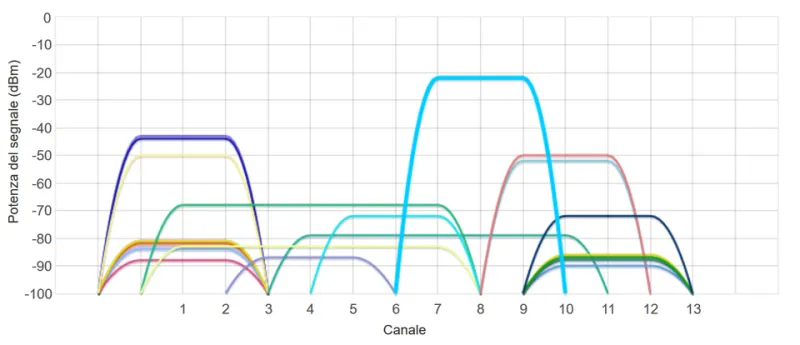
Photo: Giacomo Alessandroni, CC BY-SA 4.0, via Wikimedia Commons
You did everything right — or so it seemed. You bought a decent extender, plugged it in roughly halfway between your router and the dead zone, and waited for the signal bars to fill up. Maybe they did. But if you ran a speed test at the far end of your house, you probably noticed the numbers were... underwhelming. Not terrible, but not what you were paying your ISP for either.
Here's the uncomfortable truth: placement that looks right and placement that performs right are often two completely different things. The gap between them isn't random bad luck — it's physics. And once you understand what's actually happening to your signal, you can stop guessing and start placing your extender where it'll do real work.
The 40% Problem Nobody Talks About
There's a concept in wireless networking called "half-duplex penalty." When a single-band extender receives a signal from your router and then rebroadcasts it to your devices, it has to do both jobs on the same radio channel. That means it can't listen and talk at the same time, and the result is a throughput cut of roughly 40-50% right out of the box — before walls, interference, or distance even enter the picture.
Dual-band extenders help by dedicating one band (usually 5 GHz) to the router backhaul and the other (2.4 GHz) to your devices. But that only works if you're actually placing the extender where the 5 GHz backhaul can hold a strong connection. Position it too far from the router, and that faster band degrades or drops out entirely, forcing everything onto one channel anyway. You've just recreated the single-band problem with a fancier device.
This is the placement paradox: put the extender too close to the router, and you're barely extending anything. Put it too far, and you're extending a weak signal — which just means your dead zone gets a slightly less dead signal. The sweet spot is narrower than most people expect.
What Your Walls Are Actually Doing to Your Signal
Not all walls are equal, and this matters enormously for placement decisions. Here's a quick breakdown of how common US home construction materials affect 2.4 GHz and 5 GHz signals:
- Drywall: Minimal impact. Maybe 3-5 dB of loss per wall. Most modern homes are mostly drywall, which is why WiFi feels deceptively good until it doesn't.
- Brick or concrete: Significant. You can lose 10-15 dB crossing a single brick wall. In older homes — especially in the Northeast and Midwest where brick construction is common — this is often the hidden culprit behind dead zones.
- Metal studs: Increasingly common in newer construction and commercial-style renovations. Metal reflects and scatters radio waves rather than absorbing them, which creates unpredictable interference patterns rather than straightforward signal loss.
- Insulation with foil backing: A surprisingly common signal killer in well-insulated homes. That reflective barrier designed to keep heat in also bounces radio frequencies around in ways that create dead spots in rooms that should theoretically have great coverage.
- Floors and ceilings: Often overlooked. A signal traveling between floors isn't just crossing one material — it's crossing subfloor, joists, insulation, and drywall in combination. Multi-story placement is almost always harder than it looks on paper.
The practical takeaway: before you pick a spot for your extender, actually think about what's between it and your router, and what's between it and the devices you're trying to reach. A placement that requires crossing two brick walls to reach the router is going to underperform a placement that requires crossing four drywall partitions.
Interference Sources That Move (and Why That Matters)
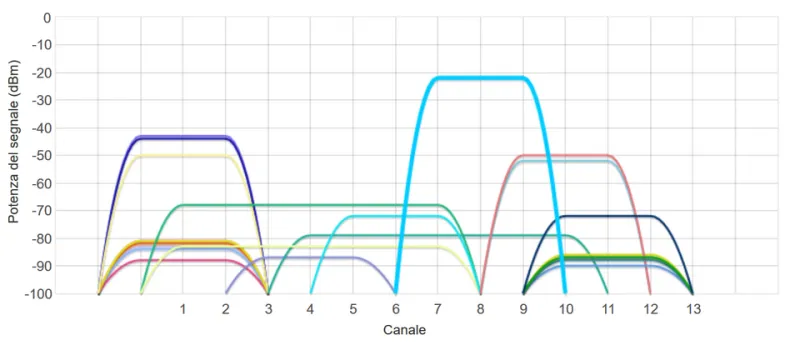
Here's something most setup guides skip entirely: interference isn't static. Your neighbor's router, your microwave, your cordless phone base station, even a baby monitor — these all operate in overlapping frequency ranges, and their impact on your signal changes throughout the day.
The 2.4 GHz band is particularly crowded. In a typical suburban neighborhood, you might be competing with a dozen or more networks at any given time. Placing your extender near a microwave or in a kitchen where appliances cycle on and off throughout the day means your performance will fluctuate in ways that feel random but aren't.
The 5 GHz band is less congested but more sensitive to physical obstacles. It's faster when conditions are good and falls apart faster when conditions aren't.
What this means for placement: avoid clustering your extender near appliance-heavy areas like kitchens and laundry rooms, even if those spots seem geometrically ideal. A slightly less "central" placement away from interference sources will often outperform the mathematically perfect midpoint.
A Real-World Speed Test Framework (No Equipment Required)
You don't need a Wi-Fi analyzer app or professional survey tools to find a better placement. Here's a simple three-step process that works with just your phone and a free speed test app like Speedtest by Ookla.
Step 1: Baseline your router. Stand about six feet from your router and run three speed tests. Average the results. This is your ceiling — the maximum performance your extender can ever relay.
Step 2: Test your candidate locations. Before plugging in the extender, take your phone to two or three potential placement spots and check the WiFi signal strength (most phones show this in Settings). You're looking for spots where your router's signal is still strong — ideally showing full or near-full bars on your router's network. If the signal is already weak at the candidate location, your extender will be amplifying a degraded signal from day one.
Step 3: Run a post-placement speed test at the destination, not the extender. This is the mistake most people make — they check the signal at the extender and declare success. What matters is the speed at the device that was previously in the dead zone. Run three tests there, average them, and compare to your baseline. A well-placed extender on a 2.4 GHz backhaul should deliver roughly 40-50% of your baseline. A dual-band extender with a clean 5 GHz backhaul can often hit 60-70%.
If you're getting less than 30% of your baseline at the destination, something is wrong — either placement, interference, or a hardware mismatch — and it's worth troubleshooting before accepting the result.
The One Rule That Overrides Everything Else
If you walk away with one principle from all of this, make it this: your extender's connection to the router matters more than its connection to your devices.
Extenders don't create signal — they relay it. If the relay station is working with a weak input, no amount of clever positioning on the output side will fix that. Prioritize placing your extender where it gets a strong, clean signal from your router, then work from there to optimize coverage toward your dead zone. That order of operations is the difference between an extender that genuinely expands your world and one that just moves your frustration six feet to the left.