Your Extender Was Fine Last Month — So Why Is It Struggling Now?
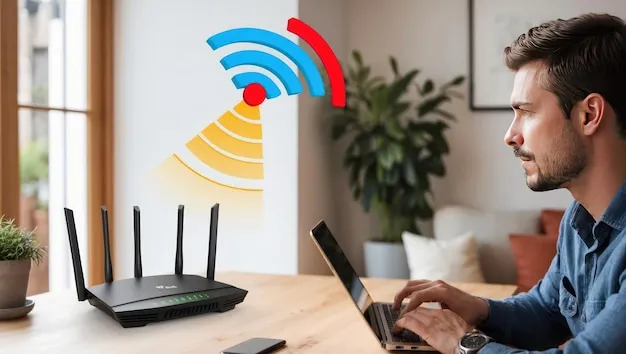
Photo: person checking wifi router and extender placement in modern living room, via img.freepik.com
Here's a scenario that probably sounds familiar: you spent an afternoon finding the perfect spot for your WiFi extender, ran a speed test, and felt genuinely satisfied. Fast-forward six months, and your video calls are choppy again, your smart TV keeps buffering, and you're back to wandering around the living room holding your phone in the air like you're trying to get a signal in 2003.
Nothing broke. You didn't change any settings. So what happened?
The honest answer is that your home changed — and your extender didn't get the memo.
Your Home Is a Moving Target
Most people think of their house as a static environment. But from a WiFi signal's perspective, it's constantly shifting. That new sectional sofa you bought in March? Dense foam and fabric absorb 2.4 GHz signals surprisingly well. The microwave your brother-in-law gave you over the holidays? It blasts interference right in the middle of the 2.4 GHz band every time someone reheats leftovers. The baby monitor you set up in the nursery, the new cordless phone base station, the neighbor who just upgraded their own router — all of it adds up.
This is what we call the WiFi Extender Placement Paradox: the spot that was genuinely optimal when you set things up becomes progressively less optimal as the radio-frequency (RF) environment around it evolves. The extender isn't getting worse. Your home is getting busier.
And because the degradation is gradual — a few percent here, a little more latency there — most people don't notice until the situation has gotten pretty bad.
The Three Big Culprits Behind Gradual Signal Decay
1. New electronics and appliances The average American home adds several connected devices every year. Each one is a potential source of interference or, at minimum, additional competition for bandwidth on your extended network. Baby monitors, wireless speakers, smart home hubs, cordless vacuums — they all operate on wireless frequencies, and many of them cluster right around the same bands your extender uses.
2. Furniture rearrangement and home renovations Moving a bookcase full of books, installing new drywall, or even adding a large fish tank can meaningfully alter how RF signals travel through your space. Water is a particularly effective signal absorber, which is why aquariums and even houseplants in large numbers can create soft dead zones that weren't there before.
3. Changes in neighboring networks You have no control over what your neighbors do with their WiFi. When someone nearby upgrades to a high-powered router or a new mesh system, they can crowd out the channels your extender relies on. In apartment buildings and dense suburban neighborhoods, this kind of channel congestion gets worse every year.
Think Predictively, Not Reactively
Most people troubleshoot their WiFi extender after things go wrong. A smarter approach is to build a light maintenance habit that catches problems before they become noticeable. Think of it like changing your car's oil — you don't wait for the engine to seize up.
Here's a seasonal maintenance checklist that takes less than 20 minutes each quarter:
Spring Maintenance Check
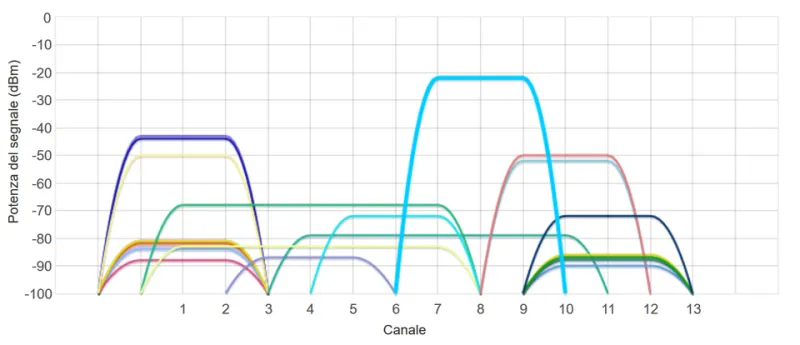
- Log into your extender's admin panel and check which channel it's broadcasting on. Use a free tool like WiFi Analyzer (Android) or NetSpot (Mac/Windows) to see if that channel has gotten crowded since you last checked. If it has, switch to a less congested one.
- Walk the coverage area with your phone and note any new weak spots. Compare to where you remember the signal being strong before.
- Check for firmware updates. Manufacturers push them regularly, and skipping them is one of the fastest ways to let performance slip.
Summer Check
- Air conditioning units and portable fans can introduce electrical noise. If you've added window AC units, check whether they're near your extender or your router and move them if possible.
- Summer gatherings mean more devices connecting at once. Log into your admin panel and review connected devices — if the list is longer than expected, it's time to audit who's on your network (more on that in our security guide).
Fall Check
- Back-to-school season means new laptops, tablets, and gaming consoles. Each one needs bandwidth. This is a good time to check your extender's QoS (Quality of Service) settings if it has them, and prioritize traffic accordingly.
- As you rearrange rooms for the new season, take a fresh look at your extender's physical position. Is it still roughly halfway between your router and your farthest device? Has anything been placed in front of it?
Winter Check
- Holiday electronics are the biggest annual RF disruptor in most homes. New smart speakers, gaming consoles, streaming sticks, and wireless toys all hit the airwaves in December. Run a fresh channel scan in January after everything's been set up.
- If you have a fireplace or space heaters, note that dense heat sources can slightly affect signal propagation in small rooms. It's minor, but in a marginal coverage area, minor things matter.
How to Reposition Without Starting Over
If your seasonal check reveals that your current placement isn't cutting it anymore, don't panic — repositioning doesn't mean reconfiguring everything from scratch.
Start by identifying the new problem zone. Walk around with your phone's WiFi signal meter and find the edges of your extender's coverage. Then identify where you actually need coverage most — that's your target zone.
Your extender should sit roughly in the middle of the path between your router and that target zone, and it needs to maintain a strong connection to the router itself. A common mistake is moving the extender too far toward the dead zone, which weakens its uplink to the router and tanks performance for everyone.
Once you've found a candidate location, plug the extender in and wait two minutes before testing. Run a speed test at the extender's location, then walk to your target zone and run another. If you're getting at least 50–60% of your router's speed at the target zone, you're in good shape.
The Bigger Picture: Turn Troubleshooting Into a Habit
The goal here isn't to make you paranoid about your WiFi. It's to shift your mindset from reactive to predictive. Spending 15 minutes every few months checking your setup is infinitely less frustrating than spending two hours troubleshooting a dead zone during a Sunday afternoon when you just want to watch football.
Your home is always changing. The good news is that once you understand why extender performance drifts over time, you can get ahead of it with very little effort. Set a calendar reminder, run through the checklist, and extend your signal before it has a chance to shrink.
That's the difference between a WiFi setup that just works and one that keeps working.