Same House, Different Results: The Real Reason Your Extender Rocks in the Living Room but Tanks in the Bedroom
Photo: Benjamin Henry Latrobe, Public domain, via Wikimedia Commons
Here's a scenario a lot of people run into: you set up your WiFi extender, do a quick test in the room where you plugged it in, and everything looks great. Fast speeds, strong signal, no complaints. Then you walk two rooms over and suddenly you're watching a YouTube video buffer like it's 2008. Same extender. Same house. Wildly different experience.
This isn't a defective device situation. It's something we call the placement paradox — and it's one of the most misunderstood problems in home networking.
It's Not Just About Distance
Most people assume WiFi signal strength is purely a distance game. The farther you are from the extender, the weaker your connection. That logic makes sense on paper, but inside a real American home, it breaks down fast.
Signal doesn't travel in a perfect sphere from your extender. It bounces, bends, absorbs, and scatters depending on everything in its path. A bedroom that's technically closer to your extender than your living room might get a fraction of the signal — simply because of what's between them.
This is why distance-only thinking gets people into trouble. You need to start thinking about what the signal has to travel through, not just how far it has to go.
The Wall Material Problem Nobody Talks About
Not all walls are created equal when it comes to WiFi. Here's a rough breakdown of what common US home construction materials do to your signal:
- Drywall: Minimal interference. Signal passes through pretty easily.
- Plaster walls (common in older homes built before the 1950s): Significantly more signal loss, especially if they contain metal lath underneath.
- Brick or concrete: Heavy signal absorption. One concrete wall can cut your signal strength by more than half.
- Insulated exterior walls: The foil-backed insulation used in many modern energy-efficient homes acts almost like a Faraday cage, trapping signal on one side.
- Tile and stone (think bathroom or kitchen walls): Dense materials that absorb a lot of 5 GHz signal in particular.
This is why a bedroom on the other side of a tiled bathroom or a kitchen with stone backsplash might see terrible performance even if it's geographically close to your extender.
Real-world example: A homeowner in a 1940s Chicago bungalow reported that their extender worked flawlessly throughout the main floor but completely failed to reach the upstairs bedrooms. The culprit? Thick plaster walls with metal lath on the staircase landing — essentially a wall that was almost opaque to WiFi signals. Moving the extender to a position where it had line-of-sight up the staircase solved the problem entirely.
Interference Patterns Are Invisible — But Very Real
Your home is full of devices that compete with your WiFi extender for the same radio frequencies. Microwaves, baby monitors, cordless phones, Bluetooth speakers, and even neighboring networks all contribute to what's called RF (radio frequency) interference.
Here's where it gets counterintuitive: interference doesn't affect every room equally. A microwave in the kitchen might be generating significant 2.4 GHz interference that tanks performance in adjacent rooms, while a bedroom on the opposite side of the house remains completely unaffected.
Similarly, if you live in an apartment building or a densely packed suburban neighborhood, your neighbors' networks can cause channel congestion that's localized to certain parts of your home — particularly rooms with exterior walls facing their units or homes.
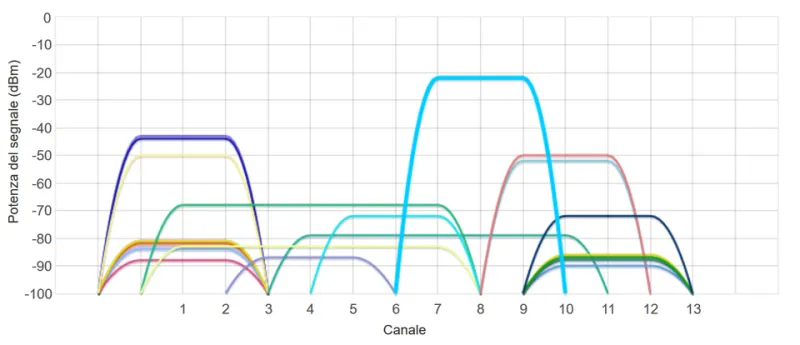
The fix here usually involves switching your extender (and router) to a less congested channel, or prioritizing 5 GHz connections where possible, since that band is less crowded and less susceptible to many common household interference sources.
Band Steering and Device Compatibility Issues
This one surprises a lot of people. Modern dual-band extenders broadcast on both 2.4 GHz and 5 GHz simultaneously, and some use a feature called band steering to automatically push devices to whichever band the extender thinks is best.
The problem? Band steering doesn't always get it right. A device in a room with marginal 5 GHz coverage might get steered onto 5 GHz anyway, resulting in a slow, unstable connection — when dropping back to 2.4 GHz would actually give it a more reliable (if slightly slower) experience.
Older devices, budget smart home gadgets, and some laptops also have quirky compatibility behaviors where they don't negotiate well with certain extender models. This can show up as inconsistent performance that seems random but is actually tied to which specific device is trying to connect in which room.
Real-world example: A family in suburban Atlanta had a home office that got great extender performance on a MacBook but terrible performance on a Windows laptop sitting right next to it. The Windows machine kept fighting over band selection with the extender. Manually assigning it to the 2.4 GHz network fixed the issue completely.
A Simple Diagnostic Framework to Find Your Problem
If you're experiencing room-to-room inconsistency, work through this checklist before you do anything drastic:
- Map your walls: Walk your home and note where brick, tile, plaster, or insulated exterior walls exist between your extender and the problem room.
- Check for interference sources: Is there a microwave, baby monitor, or dense cluster of Bluetooth devices near the problem area?
- Run speed tests in multiple spots: Use a free tool like Speedtest.net or Fast.com on your phone. Test at the extender itself, halfway to the problem room, and in the problem room. This helps you isolate where the signal drops off.
- Switch bands manually: If your devices allow it, try forcing a connection to the opposite band (2.4 GHz vs. 5 GHz) and see if performance changes.
- Check channel congestion: Download a WiFi analyzer app (WiFi Analyzer on Android is free and excellent) to see which channels are congested in your home.
- Consider a second extender: If the problem room is truly isolated by dense building materials, a single extender may never be enough. A second unit placed closer to that room — daisy-chained or on a separate network — might be the only real solution.
The Takeaway
Room-to-room inconsistency with WiFi extenders is almost never random. There's always a reason — usually a combination of building materials, interference, and band compatibility issues working together to create a dead spot that defies simple logic.
The good news is that once you stop thinking about WiFi coverage as a simple distance problem and start thinking about it as a signal path problem, the solutions become a lot clearer. Your extender isn't broken. Your house just has opinions about where it wants to let the signal through — and now you know how to push back.