When the Power Blinks and the WiFi Doesn't Come Back: Recovering — and Protecting — Your Extender After an Outage
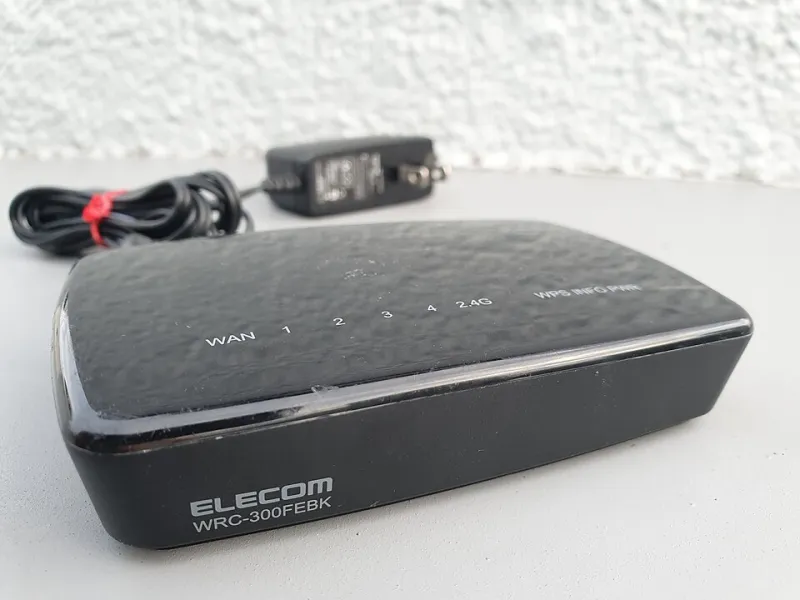
Photo: Syced, CC0, via Wikimedia Commons
The storm rolls through at 2 a.m., the lights flicker, and by morning the WiFi is behaving strangely. The router came back fine. The extender did not. This is an extremely common sequence, and it is also one of the most misunderstood — because a power event can damage an extender in ways that look exactly like a software bug, and it can quietly undo security settings you spent an evening configuring.
Here is how to work through it in a sensible order.
First Ten Minutes: Rule Out the Boring Stuff
Before you conclude the device is fried, check the basics.
- Is the extender's power LED solid, blinking, or dark? Dark usually means no power reaching the unit.
- Check the outlet itself. Half the outlets in a US living room are switched. Someone may have flipped the wall switch that feeds the one the extender uses.
- Check the power brick. Pull it and look for a bulged case, a scorched smell, or a loose barrel connector. Extender power supplies fail far more often than the extenders themselves.
- Unplug for a full 30 seconds before plugging back in. Some units hold residual charge and will not fully restart otherwise.
- Power the router first, wait two minutes, then the extender. Extenders that boot before the router sometimes latch onto a network that is not fully up and never recover until rebooted again.
If the extender is showing an SSID but you cannot connect, or the SSID keeps appearing and disappearing, you are probably dealing with a boot loop rather than a dead radio.
The Boot Loop, Explained
A boot loop looks like this: the LED cycles through a sequence every 30 to 60 seconds, the network name flickers in and out of your phone's WiFi list, and the device never stabilizes. The cause is usually a corrupted firmware image or a settings file that got truncated mid-write when the power dropped.
What to try, in order:
- Hard reset with the pinhole button. Hold 10 to 15 seconds with the unit powered on. This is your best shot at clearing a bad config.
- Recovery mode. Many brands ship a firmware recovery mode — often triggered by holding reset while applying power — that lets you push a fresh firmware file from a computer over Ethernet. Check your model's manual; the procedure is specific but usually works.
- Swap the power adapter. Match the voltage exactly and meet or exceed the amperage. A 12V 1.5A unit will run on a 12V 2A supply but not on a 9V one, and polarity matters.
If it still loops after a recovery flash and a known-good adapter, the hardware is the problem.
The Silent Reset: When It Comes Back as a Stranger
This is the failure mode people miss because the extender looks perfectly healthy. Some models reset to factory defaults after repeated brownouts or a specific number of unclean shutdowns. The device works — it is just no longer yours.
What that means for security, concretely:
- The admin password is back to the factory default, which for most consumer brands is printed on the label and documented publicly. Anyone on your network can log in and change your settings.
- The WiFi encryption may have reverted to an open or WPS-enabled state. WPS in particular is a known weak point and should be off permanently.
- Your guest network is gone, along with any per-device access rules you set up.
- Firmware auto-update may be disabled again, leaving the device on an old image with known vulnerabilities.
So after any outage that resets the unit, do a full re-hardening pass: log in, change the admin password, confirm WPA2 or WPA3 encryption is on, disable WPS, disable remote management, and check that the firmware is current. Then export or screenshot the configuration so next time is a five-minute restore instead of a rebuild.
It is also worth checking your router's client list afterward. If an unfamiliar device appeared the same week your extender reset, that is a coincidence worth investigating rather than shrugging at.
Protecting It Before the Next Storm
The cheapest insurance here is genuinely cheap. A small uninterruptible power supply — 150 to 300 VA is plenty for a router plus an extender — costs less than a replacement extender and does three things: it rides out short outages so nothing reboots, it shields against brownouts, and it conditions the power. Plug the router into it too, or you will just have a UPS keeping an extender alive while the router dies.
If a UPS feels like overkill:
- Use a surge protector with a real joule rating (1,000 or higher is a reasonable floor) and a clamping voltage around 330V. Replace it after a big hit; surge strips are consumable, and a unit that has absorbed a serious spike often keeps working with no indication that its protection is spent.
- Do not daisy-chain power strips. It is a fire risk and it defeats the protection.
- Consider a whole-home surge protector at the electrical panel, especially in areas with frequent thunderstorms or an overhead feed.
- Keep the extender out of outlets that share a circuit with a window air conditioner or a microwave. Motor startups are unkind.
Which Symptoms Mean It Is Actually Dying
Some damage does not announce itself. If you see these after an outage, the hardware is on its way out, regardless of what the LED says:
- Coverage is noticeably smaller than before, consistently, after a reset and a firmware reflash.
- One radio band stopped working entirely while the other is fine.
- The unit drops off the network at regular intervals, more often when it is warm.
- It fails to retain settings across a normal reboot, even without an outage.
- The case runs hot enough to be uncomfortable to touch, and the power adapter whines.
Check your warranty before you recycle it — most extenders carry one to two years, and surge damage is not always excluded from coverage unless it is obvious.
The Short Version
Check the outlet, then the adapter, then do a hard reset. Assume any unexplained reset has undone your security settings and rebuild them properly. Put the router and extender on a small UPS if you live somewhere with an unreliable grid, and treat repeated post-outage weirdness as a hardware signal rather than something a firmware update will magically cure.