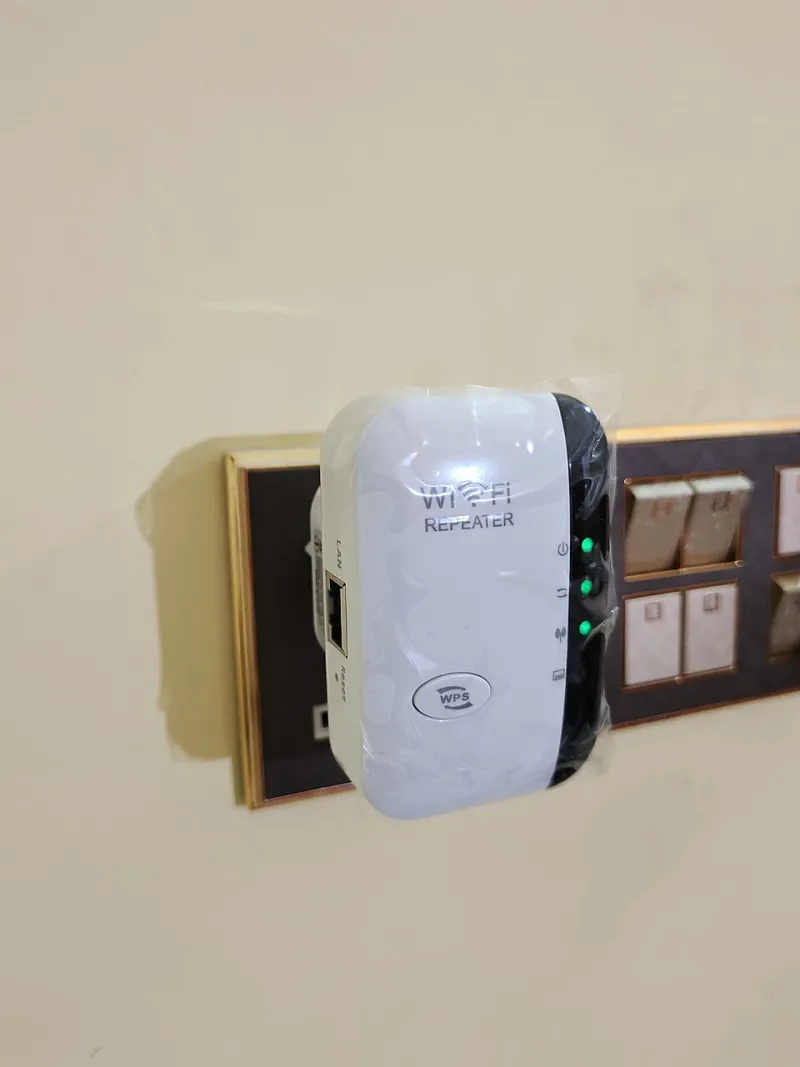
Someone Else Might Be Using Your WiFi Extender Right Now — Here's How to Find Out

Photo: Photograph by Mike Peel (www.mikepeel.net)., CC BY-SA 4.0, via Wikimedia Commons
Let's get something uncomfortable out of the way: your WiFi extender might be the weakest security link in your entire home network. Not your router. Not your smart devices. Your extender — the little plug-in box you set up once and probably haven't thought about since.
Here's why that matters. When you extend your WiFi signal, you're not just reaching the back bedroom or the garage. You're also broadcasting a network that, in many cases, is easier to crack than your main router's signal. And if someone nearby figures that out, they're not just stealing bandwidth — they potentially have a foothold into everything on your network.
This isn't a scare tactic. It's a reality check. And the fix is easier than you think.
Why Extenders Are Softer Targets Than Your Router
Most modern routers ship with reasonably strong default security settings. Many ISP-provided routers now come with unique passwords printed on a label rather than a generic default like admin/admin. Extenders, on the other hand, are a different story.
A huge percentage of WiFi extenders on the market still ship with default admin credentials that are either printed in the manual, posted on the manufacturer's website, or — worst of all — set to something like admin and password. If you've never changed those, anyone who connects to your extended network can potentially log into the admin panel and start messing with your settings.
Beyond the admin panel, many extenders broadcast their own SSID (network name) that's separate from your main router's network. Names like NETGEAR_EXT or TP-Link_Extender are immediately recognizable as extender networks, which signals to anyone scanning for networks that there's a potentially under-secured access point nearby.
In dense neighborhoods and apartment complexes across the US, this is a real, everyday risk.
Step One: Audit What's Actually Connected
Before you can secure your network, you need to know what's on it. This is easier than most people expect.
Option A: Use your extender's admin panel. Log into your extender's interface (usually by typing something like 192.168.1.1 or mywifiext.net into your browser — check your device's manual for the specific address). Look for a section called "Connected Devices," "Device List," or "Client List." You'll see every device currently connected, usually listed by MAC address and sometimes by device name.
Option B: Use a network scanner app. Free tools like Fing (available on iOS and Android) or Angry IP Scanner (desktop) will scan your network and show you every connected device, often with more readable device names than your extender's admin panel provides. This is genuinely one of the most eye-opening things you can do — most people are surprised by how many devices show up.
As you review the list, look for anything you don't recognize. Unknown device names, unfamiliar manufacturers (the tool will often show you the brand based on the MAC address), or a higher device count than you'd expect are all red flags worth investigating.
Step Two: Change Your Admin Credentials — Right Now
If you haven't changed your extender's admin username and password since you set it up, stop reading and do it now. Seriously.
Log into the admin panel, find the account or administration settings, and change both the username (if changeable) and the password to something unique. Use a password that's at least 12 characters and mixes letters, numbers, and symbols. Don't use the same password you use for anything else.
This single step eliminates the most common attack vector for extender-based intrusions. It takes about three minutes.
Step Three: Rename Your Extended Network
If your extender is broadcasting a name like MyNetwork_EXT or anything with "extender," "ext," or the manufacturer's name in it, you're advertising the fact that you have an extender to anyone within range. That's not great.
Rename your extended network's SSID to something that gives nothing away. Ideally, match it exactly to your main router's network name — this creates a seamless roaming experience and doesn't tip off anyone scanning for networks. If your extender supports it, also hide the SSID broadcast entirely, which adds a small layer of obscurity (though it's not a substitute for a strong password).
While you're in the SSID settings, make sure your network password is strong. WPA3 is the current gold standard for WiFi security — if your extender supports it, use it. If it only supports WPA2, that's still fine, but make sure you're not still running WPA or (worse) WEP, which are both considered broken at this point.
Step Four: Set Up a Guest Network for Visitors
One of the best security habits you can build is keeping your main network separate from the one you hand out to guests. Most mid-range and higher extenders support guest network functionality, which creates an isolated WiFi network that visitors can use without getting access to your main network's devices.
This matters because every device you give your main network password to becomes a potential risk. Your neighbor's kid who connected their phone at your cookout, the contractor who asked for the WiFi password, the houseguest who stayed for a week — all of them now have credentials that could be shared or compromised. A guest network sidesteps this entirely.
Set the guest network with a different, simpler password that you can share freely and change periodically. Keep your main network credentials close to the chest.
Step Five: Check In Regularly
Network security isn't a one-and-done thing. Make it a habit to log into your extender's admin panel every month or two and glance at the connected device list. If you see something new that you don't recognize, investigate before assuming it's harmless.
Also keep an eye out for these signs that something might be off:
- Unexplained slowdowns during off-peak hours. If your internet crawls at 2 a.m. when no one in your house is using it, someone else might be.
- Data usage spikes on your ISP bill. Most ISPs provide a usage dashboard. If your data consumption jumps without a clear reason, it's worth auditing your connected devices.
- Devices you don't recognize showing up in your router's DHCP table. Your router keeps a list of every device it's assigned an IP address to — unfamiliar entries there are a signal to dig deeper.
The Balance Between Secure and Usable
One concern people have when they start locking down their extender is that they'll make things complicated for themselves. Fair enough — nobody wants to fight with their own WiFi every time they add a new device.
The good news is that the steps above don't make day-to-day use any harder. Strong passwords and renamed networks are invisible once everything's connected. Guest networks actually make life easier because you stop handing out your real credentials to everyone who visits. And auditing your device list occasionally takes five minutes.
You set up a WiFi extender to expand your world — to reach every corner of your home with a reliable signal. Taking 30 minutes to properly secure it means that expanded coverage stays yours, and yours alone.