Green Bars, Dead Browser: How to Diagnose an Extender That Looks Connected but Isn't
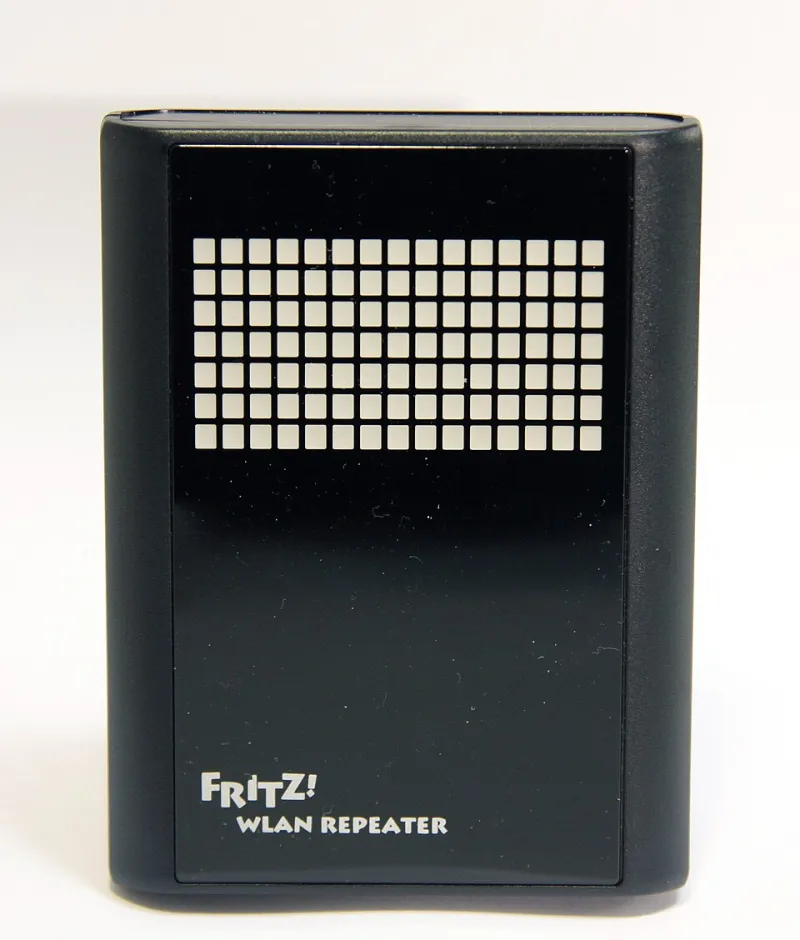
Photo: BrunoAleixo, CC BY-SA 3.0, via Wikimedia Commons
Your phone shows four bars. Your laptop shows a full arc. The extender app glows green. Then the browser spins, the video stalls, and a smart plug drops offline. If that is your life right now, take a breath: the extender is probably not dying. You are bumping into the oldest confusion in home networking. Signal strength is not the same thing as internet access.
The bars are a local conversation, not a delivery route
Those bars measure RSSI, or received signal strength indicator. In plain English, they tell you how loudly your phone and the extender can hear each other. A strong reading, say -50 dBm, is a good radio link. A reading around -67 dBm is usable. Below -75 dBm, things get shaky. But none of that says whether the extender can hear the router, whether the router can reach your ISP, or whether your laptop has a valid IP address. The meter is a microphone check, not a network health report.
This is why full bars can coexist with a dead page. Your device has a great link to an extender that has a terrible link to the router, or an extender that is handing out bad network settings. The radio is fine. The path is broken.
The backhaul is usually the weak link
Most extenders talk to the router over WiFi. That link is called the backhaul. If the extender sits in a hallway where it can barely hear the router, your phone can still show full bars because it is standing right next to the extender. The extender, meanwhile, is trying to pull data through a thin, noisy connection. You get the worst of both worlds: a confident signal meter and a sluggish internet experience.
A quick test helps. Open the extender's admin page or app and look for the uplink signal or backhaul rate. Compare that number with the signal your phone sees. If the phone-to-extender link is strong and the extender-to-router link is weak, move the extender closer to the router, even if that means giving up a little coverage at the far end of the house.
Double NAT and DHCP conflicts can mimic a weak signal
Sometimes the radio is fine and the addressing is a mess. If your extender is running in router mode behind another router, you can end up with double NAT. Your devices sit on one private network, the extender translates again, and some apps, game consoles, and VPNs struggle. Pages may load slowly or fail while the signal bars look perfect.
The fix is usually to put the extender in access point mode, or bridge mode, so it stops acting like a second router. Check the extender's settings for a mode switch. If you need routing features, at least make sure only one device is running DHCP.
DHCP conflicts are another classic. Two DHCP servers on the same network can hand out overlapping addresses, and devices may end up with a gateway that points nowhere. Log in to the extender and turn off its DHCP server when it is in access point mode. Then renew the lease on your laptop or phone and test again.
A step-by-step diagnostic checklist
- Test near the router. Connect directly to the main WiFi or plug in Ethernet. If the internet is slow there too, the extender is not your problem.
- Check the extender's uplink status. A weak backhaul signal explains a lot. Move the extender halfway between the router and the dead zone.
- Compare IP settings. On an affected device, check the IP address, subnet mask, and default gateway. If the gateway is on a different subnet than the router, you may have a double NAT or DHCP issue.
- Look for two DHCP servers. In access point mode, the extender's DHCP should be off. Only the main router should hand out addresses.
- Test DNS separately. If a site fails by name but loads by IP address, DNS is the suspect. Try a public resolver temporarily to confirm.
- Try a wired backhaul. If the extender supports Ethernet and you can run a cable, do it. A wired backhaul removes the weakest radio link from the equation.
- Update firmware and reboot the chain. Power down the modem, router, and extender. Bring them up one at a time. It sounds basic because it works.
- Check channel congestion. In apartments and dense neighborhoods, a crowded 2.4 GHz channel can tank throughput even when RSSI looks great. Switch to 5 GHz for nearby devices when possible.
What to do with the answer
If the backhaul is weak, move the extender. If the addressing is broken, fix the mode and DHCP settings. If the router itself is failing, no extender will save you. The point is to stop trusting the bars as a verdict. They are one data point, and a narrow one at that.
Full bars mean your device and the extender are on speaking terms. They do not mean the conversation reaches the internet. Once you separate signal strength from throughput, the troubleshooting gets a lot less mysterious.