Running Hot: The Real Reason Your WiFi Extender Feels Like a Stovetop (And Why It Matters More Than You Think)
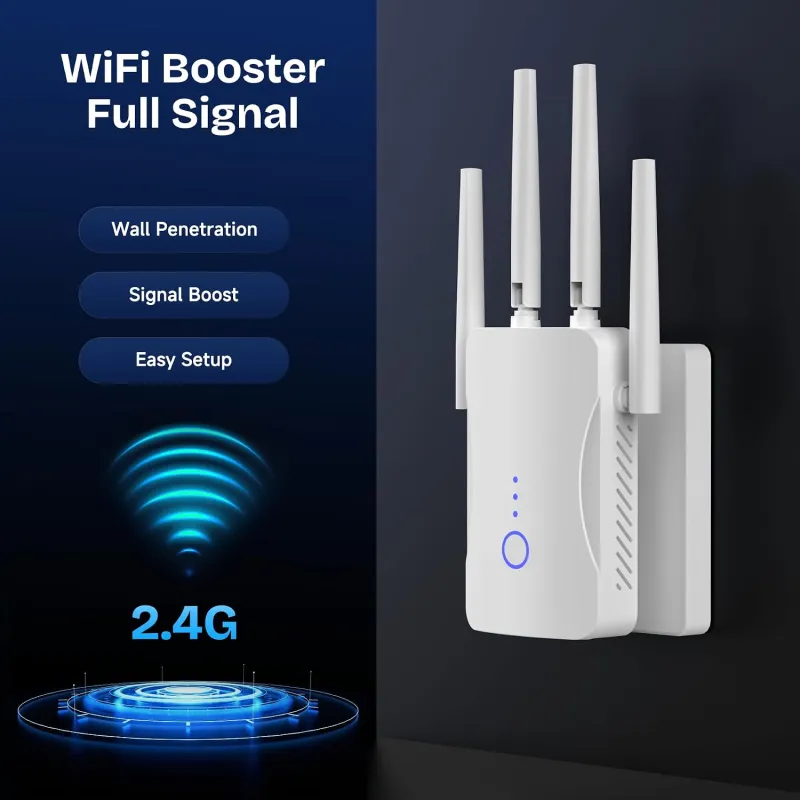
Photo: wifi extender overheating plugged into wall outlet warm glow, via m.media-amazon.com
Pick up your WiFi extender after it's been running for a few hours. Go ahead — we'll wait. If it feels like something you could warm your hands on during a January cold snap, you're not imagining things. WiFi extenders genuinely run hotter than most routers, and the gap is bigger than most people realize. But here's the thing: that heat isn't just a weird side effect. It's actively working against your connection quality, and in some cases, it's quietly shortening the life of your hardware.
Let's get into why this happens, what it actually does to your signal, and — most importantly — what you can do about it without spending another dollar.
Why Extenders Run Hotter Than Routers in the First Place
It comes down to a few compounding factors, and the first one is probably not what you'd expect: location.
Your router typically lives in a relatively open spot — on a shelf, a desk, or mounted on a wall with decent airflow. Your extender? It's usually jammed into an outlet that happens to be in a hallway corner, tucked behind a piece of furniture, or plugged in right next to other electronics. These locations are chosen for convenience and signal geography, not ventilation.
But there's more going on than just placement. Extenders are doing something fundamentally different from routers from a processing standpoint. A router receives a signal once from your ISP and broadcasts it. An extender has to receive a WiFi signal and rebroadcast it simultaneously — often on the same radio band in older single-band models, which means the radio is working double time. That constant receive-and-retransmit cycle generates heat in a way that a router's one-directional broadcast simply doesn't.
Dual-band and tri-band extenders handle this more gracefully by separating the backhaul and broadcast functions across different bands, but they still tend to run warm because they're packing more radio hardware into a smaller chassis than most standalone routers.
And then there's the form factor problem. Plug-in extenders — the kind that look like a wall wart — have almost no surface area for passive heat dissipation. Compare that to a router, which typically has a larger plastic body, internal airflow channels, and sometimes even heat sinks built into the circuit board. Your extender is basically a hot computer chip in a tiny plastic shell with nowhere for the heat to go.
What Heat Actually Does to Your WiFi Performance
This is where it gets interesting, and a little frustrating.
When semiconductor components — the chips inside your extender — get too hot, they don't just fail dramatically. They throttle. Processors and radio chips are designed to reduce their own performance when temperatures climb past safe thresholds, a process called thermal throttling. This is a protective mechanism, but the practical result is that your extender quietly starts underperforming right when you need it most: during heavy use, which is also when it's generating the most heat.
In informal thermal comparisons using an IR thermometer across several popular plug-in extender models — including units from TP-Link, Netgear, and ASUS — surface temperatures under sustained load (streaming 4K video while also handling multiple device connections) ranged from around 104°F to nearly 130°F. The hotter units showed measurable throughput drops compared to their performance during a cold-start test. The cooler-running models, interestingly, tended to be the ones with slightly larger housings or built-in ventilation slots.
Beyond throttling, sustained high heat accelerates capacitor degradation on the circuit board. Capacitors are what keep your extender's power delivery stable, and once they start going, you'll see symptoms like random reboots, dropped connections, and eventually complete hardware failure. Running an extender at 120°F+ for years isn't dramatically different from running any other consumer electronics hot — it just shortens the clock.
The Outlet Location Problem (And the Easy Fix)
Here's something most people never think about: not all outlets in your home are created equal in terms of heat environment.
An outlet near the floor in a carpeted hallway is going to trap heat differently than one at chest height in a tiled kitchen. Outlets near other heat-generating devices — like near a cable box, a gaming console, or even a lamp — create a micro-environment that pushes ambient temperatures up before your extender even warms itself up.
The simplest fix that costs nothing: move your extender to a different outlet. Specifically, look for one that's:
- At a higher position on the wall (heat rises, so higher outlets in open spaces can actually have better airflow than floor-level ones in enclosed spots)
- Away from other electronics
- Not inside a cabinet or entertainment center
- Not in direct sunlight for part of the day
If your extender must stay in a specific location for signal reasons, try rotating it so any ventilation slots are oriented vertically rather than horizontally — this encourages passive convection airflow.
The Extension Cord Trick
One underrated move: use a short extension cord or a right-angle plug adapter to pull your extender a few inches away from the wall. This sounds trivial, but it accomplishes two things. First, it gives the back of the unit — which is almost always the hottest surface — actual clearance from the wall. Second, it lets you position the extender slightly above the outlet, which improves passive airflow around the chassis.
Make sure you're using a properly rated extension cord (not a cheap dollar-store one) and that you're not overloading the circuit. But for most extenders drawing under 10 watts, a standard indoor extension cord is perfectly safe.
When to Actually Worry
Some heat is normal. If your extender is warm to the touch but not uncomfortable to hold, you're probably fine. The warning signs that heat is becoming a real problem:
- Random disconnects that happen more often in the afternoon or evening (when the unit has been running longest and ambient home temperatures are higher)
- Speed drops that correlate with extended use — fast in the morning, sluggish by evening
- Visible discoloration on the plastic housing around the plug (a sign of sustained extreme heat)
- Unexpected reboots with no obvious cause
If you're seeing any of these, heat is a very plausible culprit before you start blaming your ISP or your router settings.
A Note on Mesh Systems vs. Extenders in This Context
One reason mesh systems have earned their reputation for reliability is that the satellite nodes are designed as standalone units with proper housings, better thermal management, and placement flexibility. You put them on a shelf, not crammed into a wall outlet. That freedom to position them in thermally sensible spots is a genuine functional advantage, not just a marketing point.
If you're consistently fighting heat issues with a plug-in extender, it might be worth factoring thermal design into your next hardware decision — not just speed specs and price.
The Bottom Line
Your extender running hot isn't just an annoyance — it's a performance issue and a longevity issue rolled into one. The good news is that most of the practical fixes here require nothing more than paying attention to where and how your extender is installed. A better outlet location, some clearance from the wall, and keeping it away from other heat sources can meaningfully reduce operating temperatures and help your hardware stay reliable longer.
Extend your signal, sure — but give your extender a little breathing room while you're at it.